
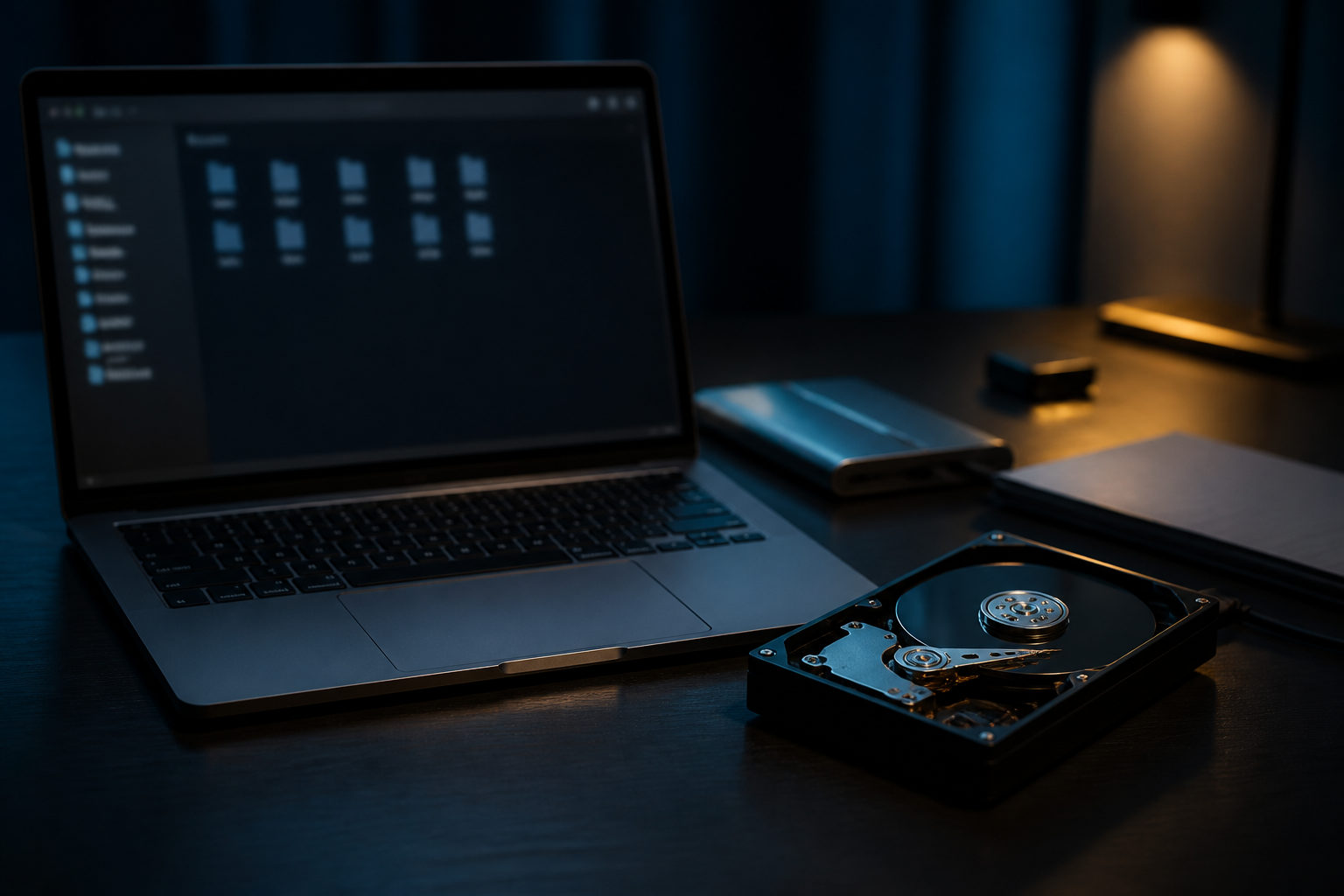
If you want to check whether your Mac hard drive has bitcoin, the real task is to look for wallet files, seed phrases, private keys, or account evidence without altering the drive first.
What you are actually trying to find
People often say they want to know whether a hard drive “has bitcoins on it.” In practice, what matters is whether the Mac stores anything that can prove access or help restore access. Bitcoin does not sit inside a folder like a photo or a document. What sits on the drive may be a wallet database, a recovery phrase, a private key, an exported backup, or records that point to an exchange or a hardware wallet setup.
That distinction matters because the search method changes with the kind of clue you expect. A person who once ran a desktop wallet should search different places than someone who only used the Mac to save screenshots, emails, or notes. Before touching anything, try to remember whether this machine was used to install wallet software, manage a hardware wallet, save recovery words, export backup files, or log in to an exchange account.
Do these protective steps before you search
Stop any action that writes new data to the same drive. That includes reinstalling macOS, formatting, repartitioning, running cleanup tools, deleting “junk,” syncing large folders, or downloading large files to the disk. If wallet data exists but has been deleted in the past, fresh writes may overwrite what is still recoverable.
Create a copy before deeper inspection if you can. A full disk image is ideal, but even a copy of the user profile and likely storage locations is better than poking around on the original. Working from a duplicate reduces the chance that a mistake, an app launch, or background sync changes timestamps, moves files, or erases a useful trace.
If you suspect the drive might contain a usable private key or seed phrase, do the first review offline. Disconnect the Mac from the internet before opening suspicious files. Do not paste key-like text into websites that claim to identify wallet formats. Do not upload screenshots to online tools. A single leak is enough to lose control.
Where to look on a Mac
Start with the places where people commonly leave wallet material, backups, or account traces. A focused search is far more useful than skimming random folders.
- Applications and Launchpad: Look for wallet apps, node software, exchange desktop tools, and hardware wallet managers. Even if the app was deleted, its data may remain elsewhere.
- Downloads, Desktop, Documents: Exported backups, text notes, screenshots, PDFs, and compressed archives often end up here.
- User library support folders: Many wallet apps store databases, configuration files, and encrypted wallet data in support directories under the user profile.
- Sandbox containers: Apps installed through Apple’s store system may keep data in containerized paths that are easy to miss during a casual search.
- Photos, scans, and note exports: Seed phrases are often photographed, scanned, or copied into notes. The filename may look ordinary.
- External drives and migration backups: The important copy may live on an old external disk or in a machine migration archive rather than on the current internal drive.
- Local mail archives: Registration emails, withdrawal confirmations, account alerts, and saved statements can show whether you used an exchange or wallet service.
If the Mac was migrated from an older machine, search old user folders and archived directories as well. Wallet traces often survive system moves because backup tools copy far more than users remember.
How to search without missing the obvious
Use Finder and system search first, but do not rely on filenames alone. Search terms related to wallet, seed, backup, key, recovery, export, keystore, and address may help surface candidates. A file called “backup,” “notes,” “archive,” or “old data” can matter just as much as one that includes “bitcoin” in the name.
File type is often a better clue than title. Text files, PDFs, images, ZIP archives, database files, configuration files, and app data folders all deserve attention. The target may be a note containing recovery words, not the wallet program itself.
Using Terminal carefully
If you are comfortable with Terminal, it can help you list hidden directories, collect file inventories, and search paths in a controlled way. That is useful because it lets you record what exists without repeatedly opening files in graphical apps.
Still, avoid random scripts from forums or video descriptions. A “wallet scanner” or “repair script” may modify permissions, rewrite metadata, install software, or create more risk than value. At this stage, preservation beats convenience.
How to judge whether a file is important
Once you find suspicious material, sort it by sensitivity and likely value. The highest-priority items are seed phrases, private keys, and wallet backup files. The next tier includes addresses, transaction screenshots, exchange statements, and email confirmations. Lower-value traces include installers, logs, cache folders, and generic software leftovers.
| What you found | What it may mean | What to do next |
|---|---|---|
| Seed phrase or private-key-like text | May provide direct control if complete and valid | Record location offline, preserve a copy, and verify completeness without sharing it |
| Wallet backup file or wallet database | May contain encrypted keys or restore data | Copy it first, then identify the wallet type and whether a password is required |
| Address list, transaction record, screenshot | Shows prior bitcoin use but not current control | Trace it back to the source wallet, app, or account |
| Exchange emails or saved statements | Suggests account-based access rather than local key storage | Look for login access, email control, and two-factor recovery details |
| Installer or software residue | Shows related software existed at some point | Keep searching for actual wallet data instead of treating residue as proof |
Many people make a wrong jump when they find a bitcoin address. An address alone does not prove that funds are still there or that you can move them. What matters is whether you can recover the signing material tied to that wallet.
If the file appears encrypted, the next useful clue may be a password trail. Check password managers, written notes, old browser-saved comments, encrypted documents, and naming habits you used at that time. Repeated blind import attempts can waste time and may even lock you into the wrong path.
Separate local wallet evidence from exchange evidence
Sometimes the Mac contains no wallet at all and only shows traces of exchange use. Emails, account alerts, identity verification copies, and saved statements can confirm that you bought or moved bitcoin at some point, but they do not mean the hard drive holds spendable keys.
If the clues point to an exchange account, your next search should shift toward account recovery material: access to the original email inbox, stored two-factor backup codes, notes about login changes, and old devices that may still hold authenticator data. A rushed recovery attempt can trigger security checks or overwrite old settings, so keep notes before making changes.
Hardware wallet traces create another common misunderstanding. A Mac may contain the companion app, firmware downloads, labels, or address history while the real recovery material lives entirely outside the computer. In that case, the key question is whether you still have the recovery phrase and any setup details recorded during device initialization.
FAQ
I found a folder named “wallet.” Does that mean I have bitcoin?
Not by itself. It may be leftover app data, a test folder, or something unrelated to Bitcoin. You still need to identify what kind of files it holds and whether they contain usable wallet information.
I found a string that looks like a key. What should I do now?
Keep the review offline, preserve the original location, and make a safe copy for later verification. Do not send the text to anyone and do not paste it into websites or chat tools.
I only found screenshots and transaction records. Is that still useful?
Yes. Those records can narrow the timeline, reveal which app or service was involved, and point you toward the original wallet or account. They are clues, not proof of present control.
The old drive has read errors. Should I keep scanning it myself?
If the drive is unstable, repeated power cycles and long scans may make things worse. Prioritize imaging or professional data recovery with clear instructions that wallet-related material is especially important.
Should I import a wallet file into a new app right away?
Wait until you know what the file is and whether it belongs to a Bitcoin wallet that the chosen app can read safely. Testing on a copied file in an isolated environment is much safer than experimenting on your everyday Mac.
A practical search order
- Stop cleanup, reinstall, format, repair, and sync activity.
- Make a copy of the drive or at least the likely user data locations.
- Review applications, Downloads, Desktop, Documents, Photos, and local mail archives offline.
- Check hidden support folders, container directories, and migration backups.
- Sort findings into direct control material, wallet files, and account or transaction traces.
- Decide whether each clue points to a local wallet, an exchange account, or a hardware wallet setup.
- If encryption is involved, search for password evidence before trying random tools.
- If the drive is failing, move to preservation and recovery instead of deeper live inspection.
If you already found something that may matter, the next useful move is simple: protect the original and verify only from copies in a controlled environment. Deleting, sharing, uploading, or importing too soon can turn a search for old bitcoin access into the moment you lose it for good.
Disclaimer: This article is for informational and educational purposes only and is not investment, financial, or legal advice. Crypto assets are highly volatile and you could lose your entire investment. Do your own research and decide carefully.