
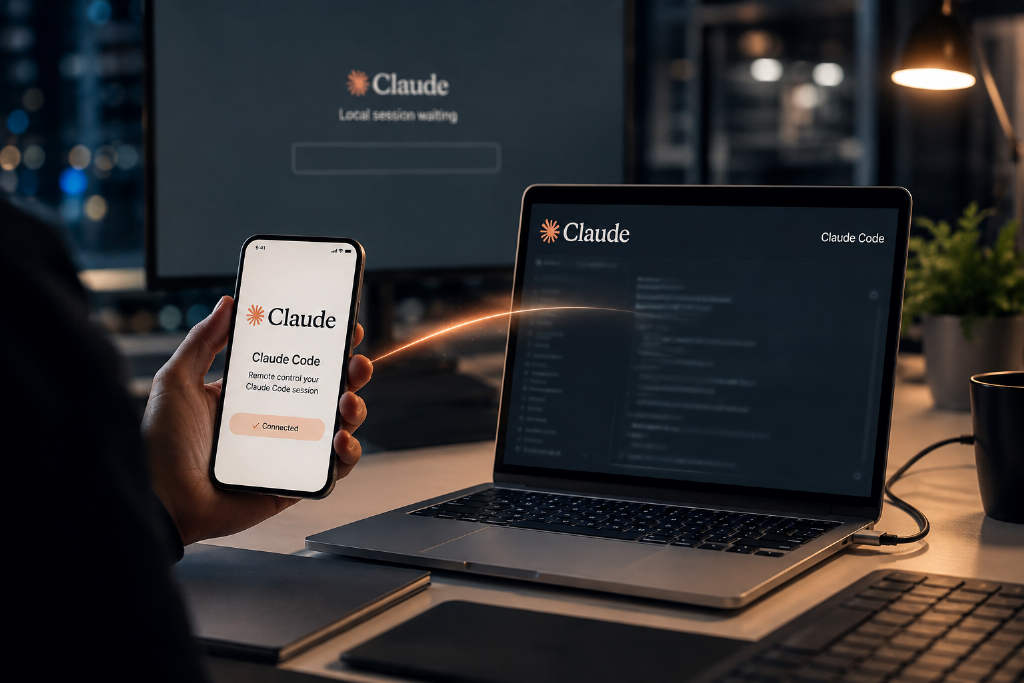
Anthropic has introduced an official Remote Control feature for Claude Code, allowing users to connect to a locally running session from the web at claude.ai/code or from the Claude mobile app on iOS and Android.
According to the walkthrough summarized by BlockTempo from Anthropic’s documentation, the feature is designed for a simple but common case: a user leaves their desk while a Claude Code session is still running locally, then needs to approve an action, respond to a prompt, or continue the task from a phone.
How Remote Control differs from cloud sessions
Remote Control connects to a Claude Code session running on the user’s own machine. Code execution and file system access stay local, and existing MCP servers, tools, project settings, and custom workflows remain available without reconfiguration.
Messages can be sent interchangeably from the terminal, browser, or phone. If the local machine temporarily loses connectivity, the system queues messages and permission prompts, then sends them after the connection returns. The mobile app can also attach photos or files to a message.
That setup is distinct from a cloud session. In a cloud session, work runs on Anthropic-hosted infrastructure, the local environment is not available, and code is uploaded. With Remote Control, the local computer remains the execution host, while the browser or phone acts as the controller, with code staying on the user’s machine.
Version, login, and subscription requirements
Remote Control requires at least Claude Code v2.1.52, released on Feb. 25, 2026. Older versions will not show the feature, so users need to update first.
Authentication is also restricted. Users must sign in with a claude.ai account through claude auth login. The feature does not support API key login and does not support long-lived tokens generated with claude setup-token. Environments using either method have to switch to claude auth login.
On subscriptions, the Free plan does not support Remote Control. Pro and Max do. Team and Enterprise also support it, but the feature is off by default and must be enabled by an organization owner at claude.ai/admin-settings/claude-code.
If an organization has Zero Data Retention enabled, Remote Control is unavailable regardless of plan.
Three activation methods, plus VS Code
The guide lists three main ways to turn on Remote Control, along with a fourth entry point in the VS Code extension. The right option depends on how the user is working at that moment.
Before any of them, there is one prerequisite that can be missed: Claude must have been run once inside the project directory, and the workspace trust dialog must already have been accepted. If Claude was launched from the home directory, that trust state is not saved, which can block Remote Control later.
1. Server mode
This mode is intended for users who want a machine to remain available as a workstation that can be taken over remotely over a longer period.
- Run: claude remote-control
- Add --name "My Project" to name the session
- Add --spawn worktree to create a separate git worktree for each new connection
- Use --spawn same-dir to stay in the same directory, which is the default
- Use --permission-mode acceptEdits to change permission handling
- Use flags such as --capacity 5 to allow parallel sessions, with a maximum of 32
- For debugging, use --verbose or --debug-file debug.log
2. Interactive session mode
This option fits users who are still at the computer and want to open a session that can later be continued from a phone.
- Run: claude --remote-control
- Short form: claude --rc
- A session name can be added after the command for easier identification on mobile
3. Enable it from an existing session
This path works for users already in the middle of a Claude Code session who suddenly need to leave or switch devices.
- Type in the chat window: /remote-control
- Short form: /rc
- A session name can also be attached here
4. VS Code extension entry point
Users working inside the Claude Code extension for VS Code can type /remote-control or /rc in the input box. The interface then shows connection instructions and a QR code, removing the need to switch back to the terminal.
How devices connect
Once enabled, there are four ways to connect to the machine:
- Copy the session link shown in the terminal and open it in any browser
- Press the space bar in the terminal to show a QR code, then scan it with the Claude mobile app
- Open claude.ai/code or the Code tab in the Claude app and select the session marked with a computer icon and a green status light
- Open claude.ai/code/new directly
The process does not require port forwarding, a pairing code, config file edits, or any extra software.
What users can and cannot do from a phone
Once connected, the mobile or browser side can send messages, monitor task progress and sub-agents in real time, attach photos or files, respond to permission prompts, and stop tasks running in the background.
The following commands are available on mobile:
- /compact
- /clear
- /context
- /usage
- /rename
- /push
- /mcp reconnect
Another set of commands works on mobile only if the value is typed directly after the command, because there is no interactive menu there:
- /model sonnet, available on v2.1.205 and later
- /effort high, available on v2.1.234 and later
- /autocompact 500k, available on v2.1.221 and later
- /config key=value, available on v2.1.181 and later
Several commands are unavailable in Remote Control:
- /teleport, which is limited to cloud sessions
- /plugin, which is limited to the local terminal
- /resume, also limited to the local terminal
The guide also notes that /mcp shows the full claude.ai connectors list in the web interface, but only a text summary on mobile rather than a tappable menu.
Permission modes
Interactive session mode supports three permission modes: Manual, Accept edits, and Plan.
Server mode supports four: manual, which is the default, plus default, acceptEdits, and plan.
Mobile clients do not support Bypass permissions or Auto mode. Even if a session is started with --permission-mode auto, it will not take effect in Remote Control.
Push notifications on mobile
Users who want approval requests to appear as push alerts on a phone need extra setup. They must install the Claude app, sign in with the same claude.ai account, and grant notification permissions at the operating system level.
Then, in the CLI on the computer, they need to run /config and enable these two options:
- Push when Claude decides
- Push when actions required
If /config shows “No mobile registered,” the phone’s push token has not synced yet. Opening the Claude app once should update it.
For delayed notifications on iOS, the guide points users to Focus mode and notification summary settings. On Android, it recommends checking battery optimization so the Claude app is not delayed for power-saving reasons.
Anthropic also notes that notifications will not be sent while the user is actively typing in the terminal, or while a file pointed to by CLAUDE_CLIENT_PRESENCE_FILE exists, because the system treats that as local presence.
Remote Control vs. cloud sessions vs. Dispatch vs. Claude Tag
| Feature | Execution location | Is code uploaded? | Machine requirement | Trigger method | Best fit |
|---|---|---|---|---|---|
| Remote Control | Local machine | No, only conversation transcripts sync | The local machine must stay on | Connect from the mobile app or the web | Taking over an active job from another device |
| Cloud sessions (Claude Code on the web) | Anthropic cloud | Yes | No local machine required, and work continues after the browser is closed | Started on the web, with a linked GitHub account | Parallel tasks without using local resources |
| Dispatch | Local desktop app | No | The desktop app must remain open | Send a task from a phone | Quick one-off delegation from mobile |
| Claude Tag (Slack) | Anthropic cloud | Yes | No local machine required | Mention @Claude in a Slack channel | Team code review in Slack |
The comparison is straightforward in the guide. If the goal is to keep the local environment exactly as it is and add a remote control surface, use Remote Control. If the goal is to offload work from the machine and let jobs run independently, use cloud sessions. If the need is just to fire off a quick task from a phone, Dispatch is lighter. For team code review inside Slack, Claude Tag is the relevant option.
Security: code stays local, but chat content does not
Anthropic says all Remote Control traffic uses HTTPS and TLS through the Anthropic API. Code execution and file access remain on the local machine, and source code itself is not uploaded.
But the guide draws a line here: conversation transcripts, including sent messages and tool activity logs, are stored on Anthropic servers so content can sync across devices and be delivered after connection interruptions. That data is governed by Anthropic’s Data usage policy.
Authentication relies on multiple short-lived credentials, each with its own scope and expiration, rather than one long-lived credential covering everything.
Trusted Devices for Team and Enterprise
Team and Enterprise plans also have a beta feature called Trusted Devices, which is off by default. If an organization owner enables “Require trusted devices” in admin settings, users must register a new device before first use. Routine access then relies on Face ID, Touch ID, or Windows Hello for biometric confirmation.
Anthropic says biometric processing happens entirely on the local device and that it does not store fingerprint or facial data.
If a device has not logged in for more than 18 hours, it must be verified again. Users can also review and revoke registered devices at claude.ai/settings/account#trusted-devices.
Organizations that do not want the feature can disable it outright with disableRemoteControl: true.
Known limits and troubleshooting
The guide lists several known constraints:
- One interactive session can map to only one Remote Control connection at a time. For parallel work, users need server mode.
- The host machine must stay running. If it shuts down, sleeps, or Claude Code is closed, the session goes offline.
- For SSH-based remote operation, Anthropic recommends using tmux or screen to maintain the session.
- In server mode, the process gives up and exits after about 10 minutes offline, so it must be restarted.
- Interactive sessions are more tolerant of interruptions and keep retrying automatically. If an HTTP 403 persists for more than three minutes, the system disconnects.
- Permission prompts and question dialogs stay open until the user responds, but other dialogs, including model selection, close and cancel by default after five minutes of inactivity. That timeout can be changed with dialogExpiry.
- When switching with /resume, old conversation history is not synced to the remote device, though new messages still sync both ways.
- Sessions restored with --continue or --session-id remain valid for about four hours.
Common error messages and fixes
| Error message | Cause and fix |
|---|---|
| Remote Control requires a claude.ai subscription | The user is not logged in, or logged in with an API key. Run claude auth login and remove the ANTHROPIC_API_KEY environment variable. |
| Remote Control requires a full-scope login token | A long-lived token from claude setup-token is being used. Switch to claude auth login. |
| Unable to determine your organization for Remote Control eligibility | Account information has gone stale. Run claude auth login again. |
| Remote Control isn’t enabled for this account | Run claude auth logout, sign in again, and make sure the client is updated. |
| Remote Control is disabled by your organization’s policy | The admin for a Team or Enterprise plan has not enabled the feature. An owner must turn it on in admin settings. |
| Remote Control isn’t available for your organization due to its compliance policy | The organization uses compliance restrictions such as Zero Data Retention. Admins cannot override this locally. |
| Remote Control is only available when using Claude via api.anthropic.com | The setup is using Bedrock, Vertex, or Foundry, or ANTHROPIC_BASE_URL points elsewhere. Remove environment variables such as CLAUDE_CODE_USE_BEDROCK and ANTHROPIC_BASE_URL. |
| Remote Control requires feature-flag evaluation | Environment variables such as DISABLE_TELEMETRY, DO_NOT_TRACK, CLAUDE_CODE_DISABLE_NONESSENTIAL_TRAFFIC, or DISABLE_GROWTHBOOK are set. Remove them. |
| Remote credentials fetch failed | Run claude remote-control --verbose for more detail and check port 443 and subscription status. |
| Couldn’t reconnect to your Remote Control session | Run /remote-control to reconnect, or start a new session with claude --remote-control. |
| Your organization requires Trusted Devices… but this device is not enrolled | Run /login again and the device will be enrolled automatically. |
| workspace trust dialog is not being remembered | Make sure Claude was started from the project directory rather than the home directory. |
The guide also points to one general diagnostic tool: claude doctor, which checks environment variables, feature flags, and organization policy settings tied to eligibility.
What the feature is for
Remote Control turns a locally running Claude Code session into something that can be operated from the terminal, the browser, and a phone. Code stays on the local machine, while conversation data is synchronized through Anthropic’s infrastructure.
For people who frequently step away from their computer but do not want to interrupt an active task, that setup gives them another way to stay in the same session. For those who want to leave the local machine out of the loop entirely and run several jobs in parallel, the guide points them toward cloud sessions instead.